 Icons byFox
The developer’s field guide
Favicon sizes: ICO, Apple touch icon and PWA manifest
Install favicons and PWA icons, configure site.webmanifest and check the maskable safe area before publishing.
A browser tab, a saved home-screen shortcut and an installed PWA do not necessarily use the same file. Exporting a small set with explicit references is easier to maintain than hoping one large PNG will cover every context.
Files in the Web / PWA export
The current package from Fox’s Icon Generator includes these assets. The PNG names below assume the default filename icon.
| File | Sizes | Use |
|---|---|---|
| favicon.ico | 16, 32, 48 px | Browser favicon |
| icon-16.png, icon-32.png, icon-48.png | 16, 32, 48 px | Small PNG variants |
| apple-touch-icon.png | 180 px | Home-screen touch icon |
| icon-180.png | 180 px | Additional PNG copy |
| icon-192.png, icon-512.png | 192, 512 px | Manifest icons with purpose any |
| maskable-192.png, maskable-512.png | 192, 512 px | Manifest icons with purpose maskable |
| site.webmanifest | JSON | Names, launch URL and icon references |
These sizes describe this export, not a universal checklist for every browser. Keep the generated manifest and the images together so custom filenames continue to match.
Install the files
Copy the extracted web package into your public web root. For a combined export, use the contents of web/. Add these elements inside the page’s head:
<link rel="icon" href="/favicon.ico">
<link rel="apple-touch-icon" href="/apple-touch-icon.png">
<link rel="manifest" href="/site.webmanifest">
Edit the manifest’s name, short_name and start_url for your application. The sample root paths assume the app is served from /; adjust them for a subdirectory deployment. If you already have a manifest, merge the icon entries instead of replacing your existing configuration.
Keep maskable artwork inside the safe circle
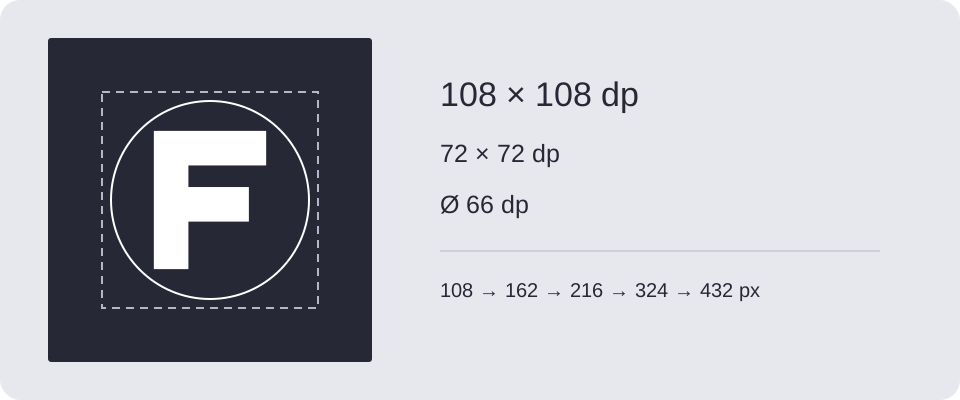
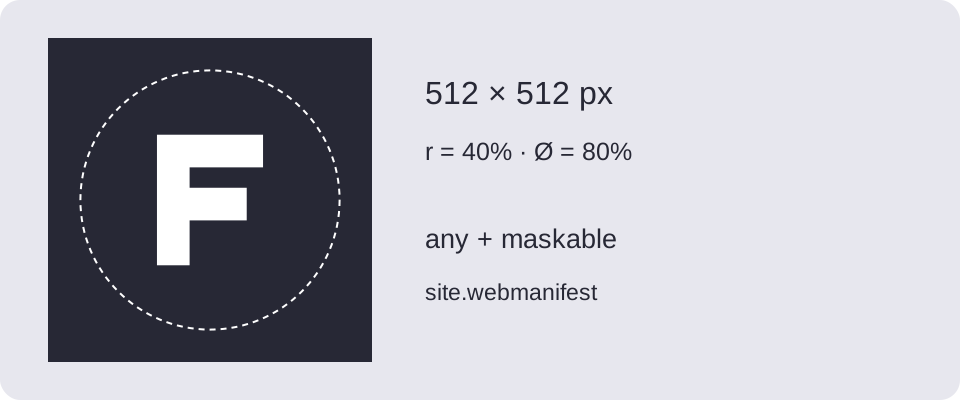
Maskable icons give the platform room to crop. Their guaranteed safe area is a centered circle with a radius of 40% of the image width. Important parts should fit inside that circle; the background should cover the canvas. See the web.dev maskable icon guide.
The downloadable source uses a compact original mark on an opaque background. The separate diagram shows the safe circle. Do not upload the diagram as your app icon: its guides and labels are instructional. The generator centers and limits the size of maskable artwork, but you should still inspect your own source’s shape.
Verify before publishing
Open the manifest and each referenced image URL directly. Check the browser’s Application panel for manifest errors and icon previews. Then test a saved shortcut. Browser favicon caches can outlive a page refresh, so check the response and file path when an older icon persists.
Google Search has its own favicon eligibility rules, including crawlable resources and a stable icon URL. Correct files do not guarantee an immediate search-result update.
For a native Apple app, use the iOS asset catalog export instead of the web touch icon.
Safe area circle in the preview
In Composition, enable Safe area circle. Use Circle diameter to set it from 20% to 100% of the icon’s shorter side; the default is 80%. Adjust the artwork’s scale and position while checking its distance from the circle.
The overlay is for preview only — it is not included in PNG or ZIP exports. Its settings are remembered in this browser but are not part of a shared project. The circle helps you judge whether the mark is centered. Enabling the overlay does not add padding to files; also inspect small favicons and the maskable preview.
Download and try it
Original examples by Fox, free to edit and use commercially. Guide diagrams are for reference; use the source SVG for export.