 Icons byFox
The developer’s field guide
Gradient backgrounds and the icon only preview
Choose colors and a gradient direction, compare platform variants and inspect the icon without surrounding system UI.
A gradient can add depth to a simple mark, but start with readability. Choose two background colors and one distinct symbol, then inspect a small preview.
Enable a gradient
Open the generator. In Composition, enable Background gradient. The builder includes a separate preview and six presets. Click a swatch to start with a ready-made palette or choose your own colors. Disable the gradient to compare it with a solid background.
Each builder row is a color stop. Pick a color and set its position from 0 to 100% with the slider. Add color inserts a stop in the widest gap; you can use two to eight colors. The × button removes a stop, and Reverse gradient reverses the entire palette.
Choose Linear to set the direction of the transition, or Radial for colors spreading from the center towards the corners. The angle slider is hidden for radial gradients.
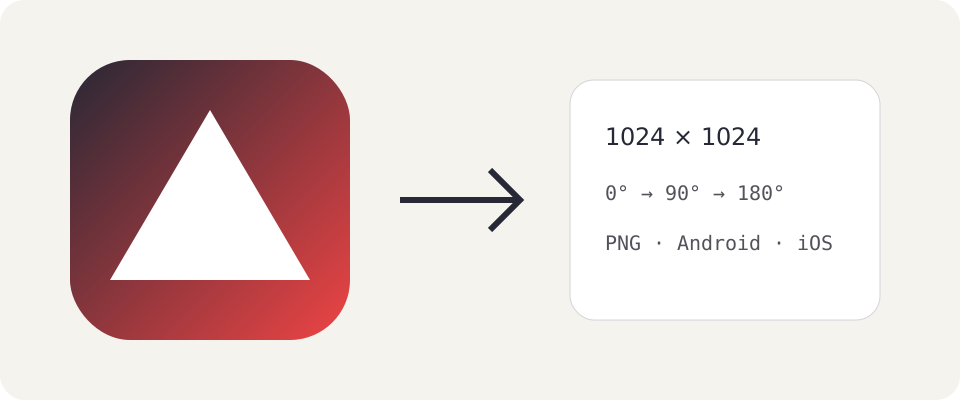
An angle of 0° runs left to right, 90° runs top to bottom and 180° runs right to left. The slider works locally and updates the preview immediately.
Check the mark's contrast
Place a light mark on a darker background or a dark mark on a lighter one. Avoid combinations where part of the symbol disappears at one end of the gradient. Zoom out to check readability at a small size.
Try the downloadable source SVG below this guide. Uploaded background artwork is painted over the color or gradient; an opaque image can cover the gradient completely. Transparency disables the background in formats that support it.
Work with the icon alone
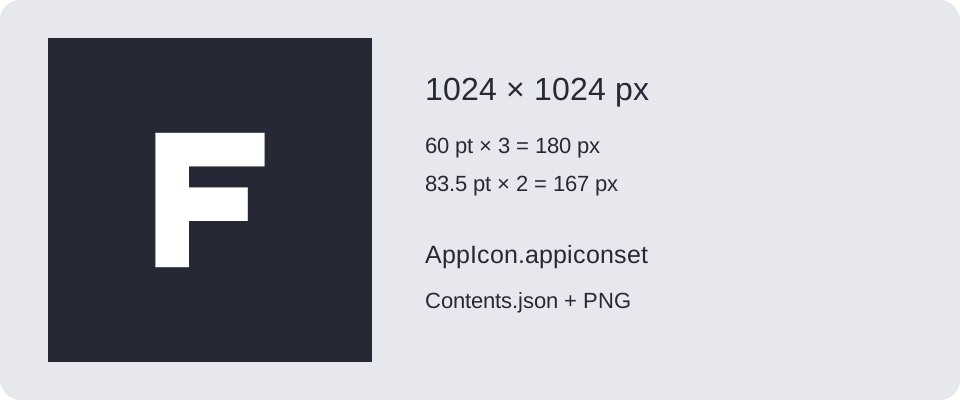
For iOS, Android, macOS, Windows and Linux, enable Icon only preview at the top of Composition. The large preview hides the desktop or phone screen. You can drag the artwork, adjust its scale and zoom the preview as in PNG mode.
This setting applies to the selected platform. Turn it off to see your mark among other applications. It changes the preview, not the format or dimensions of exported files.
Compare platform variants
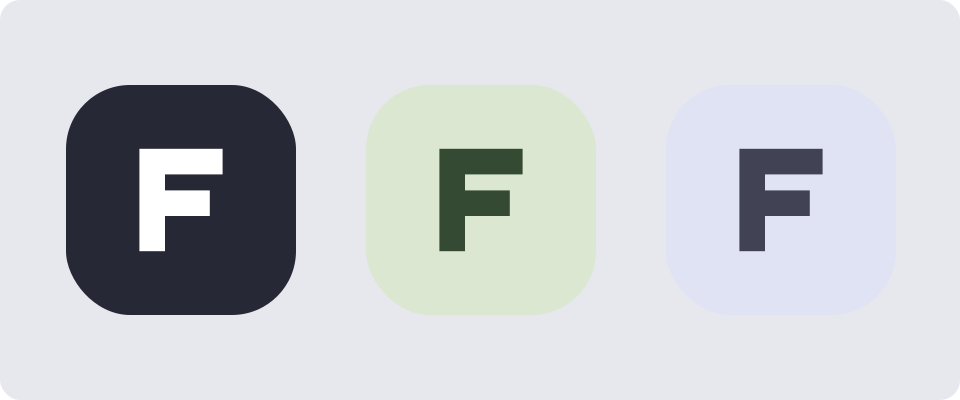
Platforms use the base composition by default. To change the gradient for just one format, switch Composition for project to that platform's composition. You can return to the base without losing the retained variant.
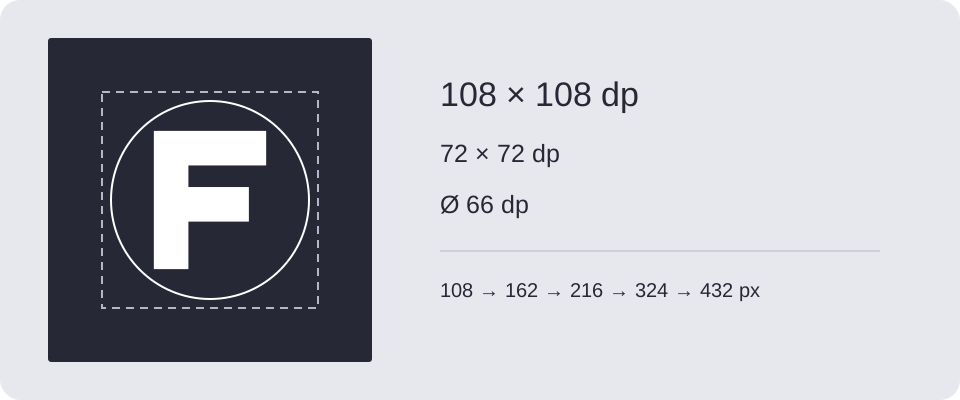
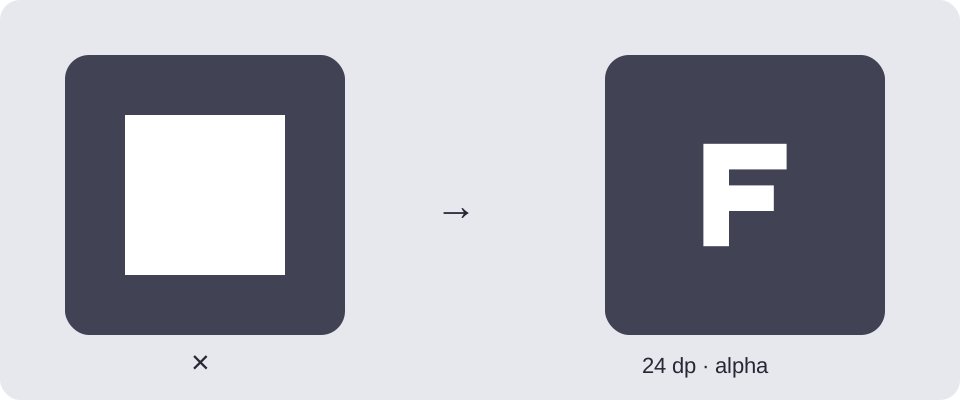
Android's color gradient is also exported in its adaptive background layer. The themed icon preview uses theme colors instead of the original gradient. Notification icons remain silhouettes without a decorative background.
Keep settings and artwork
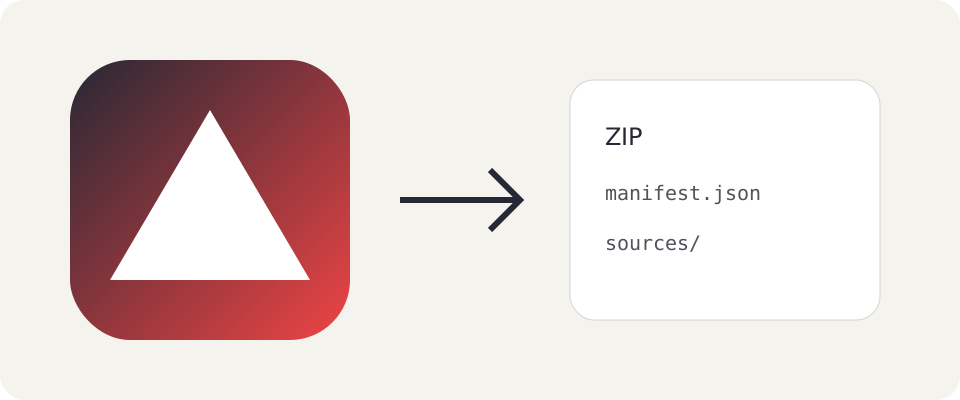
Choose Save project to retain gradients, variants and preview choices together with uploaded artwork. ZIP icon exports also contain the gradient type, every color stop and data for restoring the project; standalone PNG downloads contain only the finished image.
Check each selected format before handing over a package. Read the project archive guide for saving details.
Download and try it
Original examples by Fox, free to edit and use commercially. Guide diagrams are for reference; use the source SVG for export.