 Icons byFox
The developer’s field guide
Android notification icons: fix the white square
Make a transparent small icon, export the correct drawable densities and connect it to setSmallIcon().
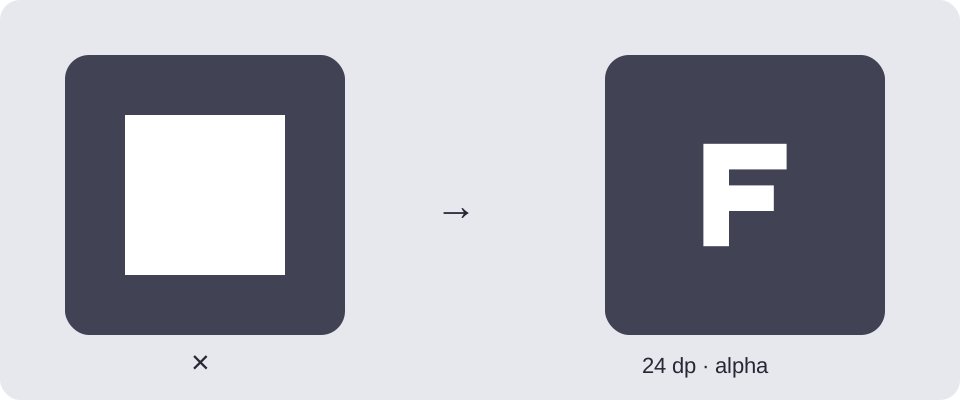
If a notification shows a white square instead of your logo, exporting a larger launcher icon will not fix it. The small notification icon must describe a silhouette with transparency around it. An opaque background becomes part of that silhouette.
Prepare the source
Use a simple mark with transparent surroundings. Avoid photographs, shaded backgrounds and tiny lettering. A white mark can appear blank on a white editor canvas, so inspect it against a checkerboard or a dark background. The downloadable source contains a white shape and no background rectangle.
Android Studio’s Image Asset Studio provides a dedicated notification-icon workflow and generates white icons for modern Android. Google also offers Material Symbols in downloadable formats if you need a starting symbol; check the license supplied with those assets.
Export the right format
In Fox’s Icon Generator, add Android Notification and select its preview. Adjust the source size for readability, then export. This output omits the launcher background and decorative badges. For image sources it uses the artwork’s transparency: it does not automatically remove a photograph’s background.
The current export represents a 24 dp small icon at five densities:
| Directory | PNG size |
|---|---|
| drawable-mdpi | 24 × 24 px |
| drawable-hdpi | 36 × 36 px |
| drawable-xhdpi | 48 × 48 px |
| drawable-xxhdpi | 72 × 72 px |
| drawable-xxxhdpi | 96 × 96 px |
These are the files produced by this generator, not a list of every possible notification image. A large notification image is a separate asset.
Connect it to the notification
Merge the exported res/ into the app module’s src/main/res/. With the default filename, reference the resource when building a notification:
val builder = NotificationCompat.Builder(context, channelId)
    .setSmallIcon(R.drawable.ic_stat_notification)
    .setContentTitle("Export complete")
    .setContentText("Your icons are ready")
This snippet assumes an existing notification channel and the app’s normal notification permission flow. It illustrates the icon reference, not a complete notification implementation. If you renamed the export, use the resource name from its README.
Check common mistakes
If the whole area is filled, reopen the source and look for a solid background. If the symbol is too small, check for excessive transparent margins before increasing the scale. If Android shows an older symbol, check the resource referenced by the code actually posting the notification.
Do not substitute the themed launcher layer just because it is monochrome. The output dimensions and intended placement differ. Keep launcher and notification resources separate so each can be tuned at its actual display size.
Safe area circle in the preview
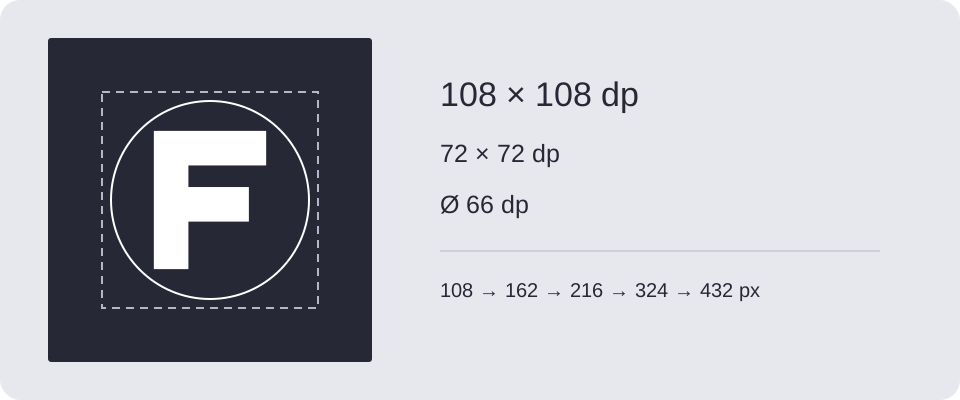
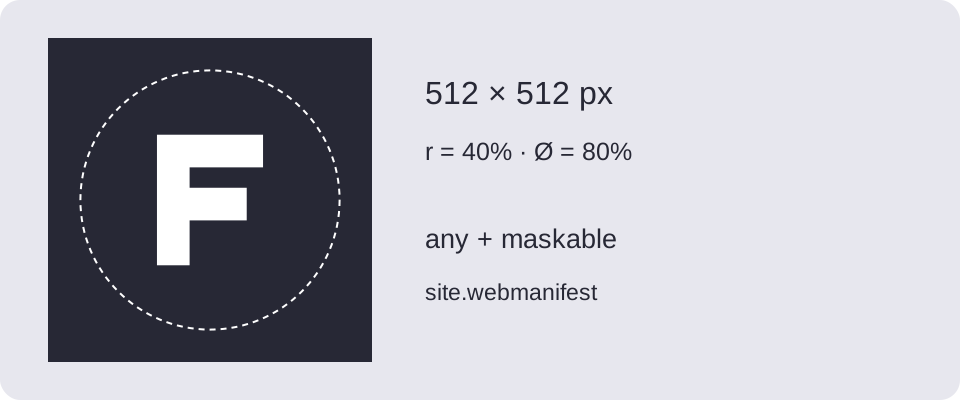
In Composition, enable Safe area circle. Use Circle diameter to set it from 20% to 100% of the icon’s shorter side; the default is 80%. Adjust the artwork’s scale and position while checking its distance from the circle.
The overlay is for preview only — it is not included in PNG or ZIP exports. Its settings are remembered in this browser but are not part of a shared project. For this format, the circle only helps with centering and spacing. It is not a required notification-icon mask; still check the small silhouette for legibility.
Download and try it
Original examples by Fox, free to edit and use commercially. Guide diagrams are for reference; use the source SVG for export.